Product updates

Find all the information about the latest releases by the ArborNote team.

Google Maps is the standard map used throughout ArborNote. For projects with larger inventories, 1,000+ trees and assets, increasingly they were encountering a slow experience. To improve this, we are releasing the option to use Mapbox instead of Google Maps. Mapbox reliably displays 20,000+ markers, well past where Google Maps slows down (1,000+).


Mapbox is available on ArborNote Desktop and Projects only. Switching between map providers does not impact any tree or inventory data. 

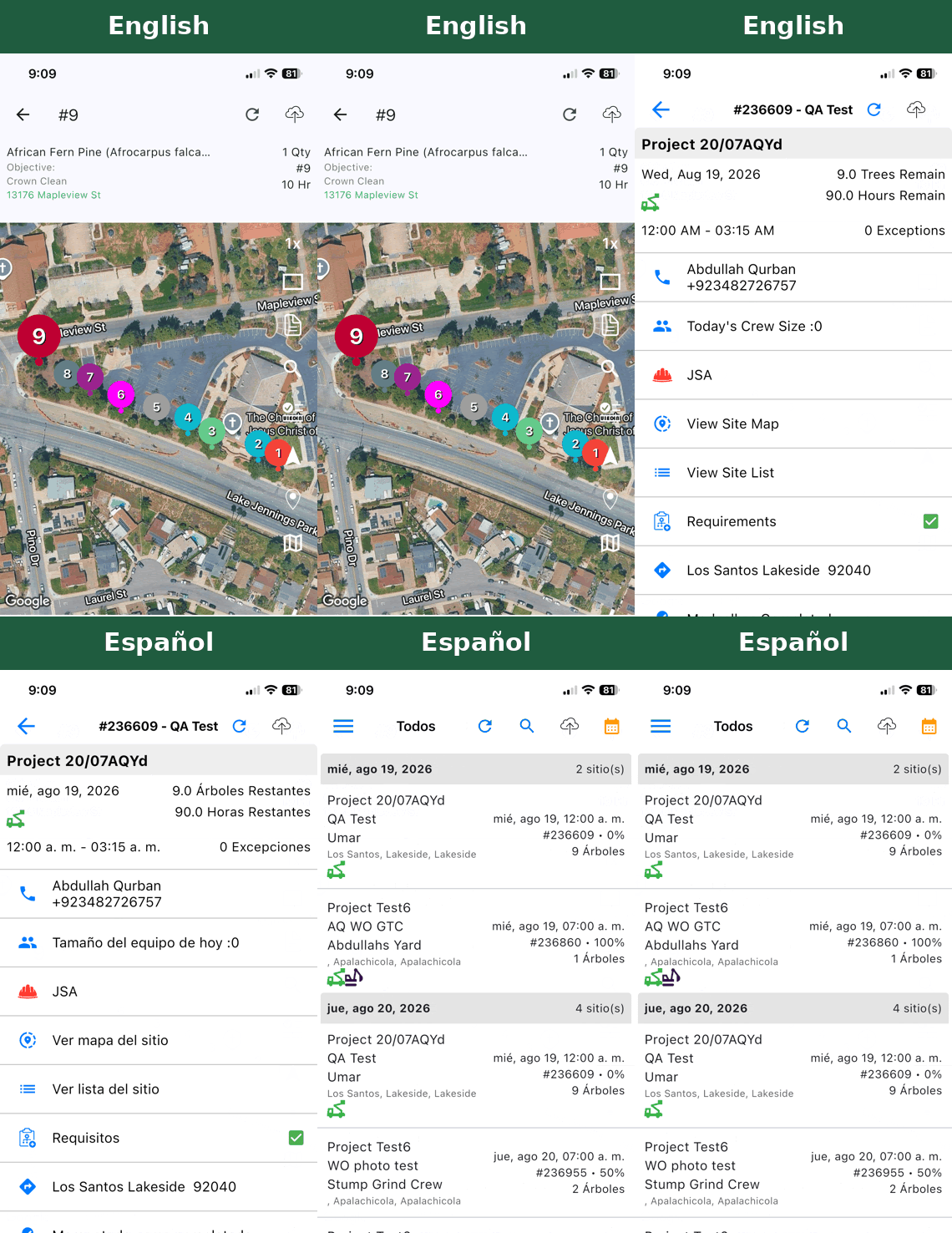
Big news for field crews: ArborNote Works is now available in Spanish.


Many crew members in the green industry are native Spanish speakers. When they can work in their own language, the outcome is faster adoption, smoother operations and fewer costly errors in the field. Saving admin time to fix later on.


If your team already has Works, switching takes seconds:


1. Open the Works app and tap Settings.
2. Tap Language. You’ll see the current setting listed as “English” or “Spanish.”
3. Select the language you want. The change takes effect immediately.


A few things worth knowing:


– Language is set per device, so supervisors and crew can each work in whichever language suits them, independently, on iOS or Android.
– No restart, no reinstall. The switch is instant and the preference is saved for next time.
– It’s included at no extra cost as part of Works.


If you’re not using ArborNote Works yet, this is the moment to get your team on it. It’s the mobile field app built for clock-in/clock-out, work orders, and daily crew management, and now it works the way your whole crew does. Reach out and we’ll get you set up.

Landscape Inspections

Walk the Property. Capture Everything. Lean on AI to Build the Inspection Report fast.

Commercial landscape clients expect clear communication, strong documentation, and confidence that all issues on their properties have been identified.

With ArborNote’s new Landscape Inspection feature, you can walk a property once, capture every issue and opportunity as you go, and generate professional inspection reports in minutes using AI.

See an example Inspection Report

Designed for Professional Landscape Operations

Whether you call them:

  • Landscape Maintenance Inspections
  • Quality Audits
  • Site Audits
  • Irrigation Inspections
  • Property Walkthroughs

…the workflow is the same.

Walk the site. Identify problems. Document opportunities. Deliver a professional report.

ArborNote now brings that entire workflow into one seamless system.


Capture Everything in the Field

Using the ArborNote mobile app you can:

📍 Map issues directly on the property

🎤 Record voice descriptions instead of typing and get AI to translate

📷 Attach unlimited photos

🌳 Inspect trees, irrigation, planting beds, turf and landscape features

🏷 Rate each item as:

  • 🟢 Good
  • 🟡 Fair
  • 🔴 Poor

Every inspection becomes its own permanent record, allowing you to compare the property’s condition over time rather than overwriting previous visits.


AI Writes the Report

When you’re back in the office, ArborNote’s built-in AI automatically generates:

  • Executive inspection summaries
  • Professional issue descriptions
  • Property maps
  • Inspection reports
  • Enhancement recommendations

Instead of spending an hour writing reports, AI produces the first draft in minutes.

Simply review, make any edits you want, and send it to your customer.


One Platform. Multiple Inspection Types.

The new inspection engine supports:

✅ Landscape Maintenance

✅ Tree Risk

✅ Irrigation

✅ Quality Control Audits

✅ Site Audits

…and more.


Built for Landscape Enhancement Sales

Inspection reports don’t just document problems.

They become the foundation for your next proposal.

Because every issue is mapped, photographed and described, converting inspection findings into enhancement opportunities has never been easier.


Why You’ll Love It

✔ AI-generated inspection reports

✔ Voice-to-text field documentation

✔ Photo-rich reporting

✔ Mapped issues and opportunities

✔ Historical inspection records

✔ Works with your existing ArborNote inventory maps

✔ Faster reporting

✔ Better client communication

✔ More enhancement revenue


Available Now

Landscape Inspections are available today in ArborNote.

Walk the property once.

Capture everything.

Let AI do the paperwork.

Smarter inspections. Better reports. More opportunities.

The team has been busy with several new features aimed at saving teams time by reducing manual data input, making measurement quick and precise, plus increasing proposal win rates.


Watch the two videos below to see the latest improvements to ArborNote for General Tree and ArborNote for Landscape Maintenance. 

Tree Care

Landscaping

Lean on AI for data entry

Describe what you want in plain language (voice or text) and watch the magic happen.

Voice data entry

Available in: ArborNote iOS & Android

Tap the voice icon, say the tree’s details out loud, and AI fills in the fields for you. Review, and you’re on to the next tree. No more typing needed (unless you prefer typing).

AI-assisted tag import

Available in: ArborNote Desktop

Upload a customer file and AI cleans and maps it in the background, ready to import in GTC or PHC mode.

AI mass edit inventories and query your data

Available in: ArborNote Desktop

Edit your entire tree inventory with a single plain-language prompt; restore with one tap if needed.

Multi-year plan editing

Available in: ArborNote Desktop

Update multi-year plans with a prompt and change multiple values at once.

Smarter intelligence

Species ID + health/maintenance analysis

Available in: ArborNote iOS & Android

Snap 3 photos and ArborNote will ID the tree species and populate health.

AI-enhanced “after” photos

Available in: ArborNote for Landscape iOS (Android coming soon!)

Help clients visualize what a tree or landscape will look like, to close more proposals.

Turn your phone into a measuring tool with LiDAR

Last month we released tree height and DBH measurement to ArborNote iOS (iPhone Pro 12+). Now, we’re adding it to Android. Plus:

LiDAR area measurement

Available in: ArborNote for Landscape iOS & Android

Measure any area by walking its perimeter and setting anchor points as you go.

LiDAR line measurement

Available in: ArborNote for Landscape iOS & Android

Measure distances and runs by pointing your phone at each reference point.

LiDAR tag-with-DBH

Available in: ArborNote iOS & Android

Tag a tree and capture its DBH plus a trunk photo in a single action.

Check out the Helpdesk and reach out to support for any help using the new AI and LiDAR features.

Introducing Job Requirements: Catch Critical Prerequisites Before They Become Costly Delays

Permits. No-parking signs. Utility locates. Neighbor approvals. On a big project, the work that has to happen before the crew arrives is often the work most likely to slip through the cracks. Until now, teams tracked those prerequisites in loose text notes and tags — and when something got missed, they usually found out too late to fix it.


Today we’re rolling out Job Requirements, a structured way to track every prerequisite on a job, give each one a clear status, and stop work from advancing until the right boxes are checked.


Why we built it

On larger projects, relying on free-text notes and tags to keep track of permits and no-parking signs isn’t viable. The problem with notes and tags is that nothing enforces them. A missing permit doesn’t announce itself — it shows up as a crew that can’t start, a re-scheduled day, and a frustrated client.

Job Requirements replaces that informal tracking with a system that does three things notes never could:


1. Gives every requirement a clear, color-coded status so anyone can see at a glance what’s done and what’s outstanding.


2. Blocks the job from moving forward at key checkpoints — project review, work order scheduling, and pre-execution — so issues surface early instead of on the morning of the job.


3. Travels with the work, carrying requirements automatically from the project all the way through to the crew’s mobile app.


The result: issues get caught while there’s still time to act on them, not after they’ve already blocked the job.


How it works

Requirements can be attached at the project level (things that apply to the whole job) or to individual tree IDs (requirements specific to one tree), and they flow through every stage of the workflow.


Set up your requirement library

Admins define the requirement types your organization uses under Settings → Job Requirements. Each requirement type can carry a few attributes that make it smart rather than just a label:


– Category groups requirements by type — for example, “Access” covers site-entry items like needing a key card.
– Default Owner Role sets who’s responsible for following up, such as Sales or Ops.
– Block Level defines the stage where an incomplete requirement blocks further action: scheduling, execution, or both.
– Required by Stage marks when in the workflow the requirement is needed.

Only the requirement name is mandatory — everything else is optional and configurable to match how your team already works.


Add requirements to a project

From the desktop app, open a project, click Actions → Requirements, then pick a requirement and set its status. Once the first requirement is saved, a Requirements box appears at the top of the project so it’s always visible. Need a requirement on a single tree instead? Double-click the tree pin to open the side bar, find the Requirements field, and add it there — the same way, with the same dialog.


Watch it carry through to proposals and work orders


When a proposal is created for a project that has requirements, **all project-level requirements and the tree-level requirements for any trees in that proposal carry over automatically** — no re-entering anything. From the scheduler queue, click the requirement icon to review or update statuses, upload and view attachments, and edit details before scheduling.


Enforcement at scheduling

This is where Job Requirements earns its keep. When you drag a work order onto the scheduler with incomplete requirements:

– Admins see a prompt that lists exactly what’s still pending and can choose to override and proceed.
– Non-admin users see the same prompt but can only cancel — they can’t override the block.

Once scheduled, the work order detail page shows a Requirements section (and only shows it when requirements exist), so the status stays front and center right up to execution.


On mobile and in the field


Job Requirements isn’t just a back-office feature — it reaches the crew.

– In the mobile app, tap the clipboard icon on a project to view and add Project Requirements and Tree Requirements. Pick from your existing requirement library or create a new one on the spot. Each requirement opens to a detail screen where you can set status, add a note, attach a file, and review its Category, Owner Role, and Stages.


– In the Works crew app, tapping into a work order with incomplete requirements shows the same prompt logic — admins can override, non-admins can only cancel and return. Crews can tap the Requirements section to review the status of everything tied to the job before they start.

A badge on the project surfaces the number of incomplete requirements, so nothing relies on someone remembering to check.


Who this is for

Any team running larger or multi-step jobs where prerequisites pile up — permits, locates, signage, HOA or neighbor approvals, compliance standards — and where a single missed item can stall a whole crew. If you’ve ever lost a day because a sign-off didn’t happen, this is for you.


Get started

Requirements are available now across the desktop app, mobile app, and the Works crew app. To set up your requirement library, head to Settings → Job Requirements, then start attaching requirements to your next project.


For the full step-by-step walkthrough, see the help center article: [Adding Requirements To A Job].